Stamp - Event & Guest Services
- Office Location: Stamp Student Union, Suite 1133
- General Inquiries: 301-314-8488
- General Inquiries: stamp365@umd.edu
- Office Hours: Monday - Friday, 9:00am - 5:00pm
Event Coordinators
Student Organization Events Josh P stamp365student@umd.edu 301-314-1912
Student Org Classroom Events Chuck stamp365classroom@umd.edu 301-314-8489
University Departments Events Eric stamp365univdept@umd.edu 301-314-8483
Non-University Events Chuck stamp365events@umd.edu 301-314-8489
Stamp eCalendar Help
Stamp eCalendar is a software program that enables our clients to submit a request to use spaces (Stamp meeting rooms, outdoor event spaces, outdoor tabling spaces, academic classroom spaces for student org meetings, etc.), technology & equipment, and other resources that are managed by the Stamp Student Union, virtually. eCalendar is available 24/7.
All room and space requests must be submitted in eCalendar at least 7 days in advance.
How-To Instructions
Review the eCalendar support instructions below ranging from requesting an account to cancelling a reservation.
Student organizations and university departments use eCalendar to submit a room requests directly. Non-University clients can submit a guest inquiry to an Event Coordinator through eCalendar.
All requests to use space must be submitted at least 7 days in advance.
Pro tip: Use a laptop/desktop when making a reservation and avoid the mobile app version.
Request an eCalendar account
When using eCalendar is is helpful to know that requests must be submitted at least seven (7) days in advance.
Student Organizations
- Student Organization Representatives eCalendar Account Request Form
- Your student organization must be listed in TerpLink
- Faculty/staff and non-university advisors are not eligible to have eCalendar accounts for a student organization
- When you submit a request form you will need to attach an authorization email from your student org president
- No more than three (3) eCalendar schedulers per student org
University Departments
- University Department Representatives eCalendar Account Request Form
- When you submit a request form you will need to attach an authorization email from your university department's director/dean.
Non-University Clients
This includes faculty/staff reserving space for personal events.
- Non-University clients will not be issued eCalendar accounts. Non-University clients can submit a guest inquiry to an Event Coordinator
- Go to ecalendar.umd.edu > click on the Request A Room button (listed under Welcome, Guest).
- After you inquiry is submitted an Event Coordinator will follow up to get more information about your your meeting/event needs
Information to know before submitting a reservation request
Please review this information before submitting a reservation request in eCalendar.
General Information
Requests must be submitted at least 7 days in advance, and no more than 365 days in advance
- After your eCalendar event request has been reviewed and processed by your Event Coordinator, you will receive a lengthy email filled with important information and deadlines, and with an event summary document attached. At this point in the process, any changes to your event, including a desire to cancel must be submitted via email to your Event Coordinator.
There is 7 Step Guide event planning guide for student orgs
- All student orgs must also submit a SORC Event Approval Form, in TerpLink, for each reservation, after space has been requested in eCalendar
Rooms | Capacities | Rates
Please refer to this page about Room |Capacities |Rates for additional information and assistance to select the best room for your event.
Stamp Building Hours, Extended Hours, and Event Timing
When submitting a request in eCalendar for a room inside Stamp or an Outside event space, the start and end time of the event must be within the established hours of operations (see below).
- Fall and Spring Semesters when classes are in session
- Monday through Thursday: 7 a.m. to 12 a.m.
- Friday: 7 a.m. to 1:30 a.m.
- Saturday: 8 a.m. to 1:30 a.m.
- Sunday: 11 a.m. to 12 a.m.
- Summer when classes are in session
- Monday through Friday: 7 a.m. to 10 p.m.
- Saturday 10 a.m. to 6 p.m.
- Sunday 11 a.m. to 6 p.m.
- January Term when classes are in session
- Monday to Friday: 7 a.m. to 9 p.m.
- Saturday 10 a.m. to 6 p.m.
- Sunday Closed
Clients with early morning events are encouraged to officially start events 15-30 minutes after the building opens for the day, as there will be no early entry access into the building.
Clients with events at night should plan to end events 15 - 30 minutes before the building closes to ensure that all participants have time to leave the building in time for closing.
Extended Hours - there is limited opportunity to request an early open or late close within these parameters, for indoor events only. Requests must be submitted in via email to your Event Coordinator:
- Early open on Saturday or Sunday not to exceed 7 a.m.
- Late close on Friday or Saturday not to exceed 3 a.m.
- Stamp will not open early or close late for events in outdoor spaces.
- Requests for an early open or late close must be submitted via email to your Event Coordinator at least 14 business days prior to the event. All requests are subject to approval, and are not guarnteed.
Other Hours of Operations
- Outside Tables
- Monday through Friday: 9 a.m. to 5 p.m.
- Academic Classrooms (Student orgs only)
- Only available during fall and spring semester when regular classes are in session.
- Monday - Friday: 5 p.m. to 10 p.m.
- Saturday and Sunday: 8 a.m. to 10 p.m.
- Only available during fall and spring semester when regular classes are in session.
Payment Deadlines and Cancellations Deadlines
- Expect to pay a 25% room rental deposit approximately 10 days after your event is processed by your Event Coordinator. The deposit is non-refundable, and non-transferrable.
- Failure to pay your deposit in a timely manner can result in the cancellation of your reservation.
- Student orgs paying with an ISR Form from SORC, must submit the ISR Form, in person, to the Stamp Information Desk for payment processing.
- Final event payments are due one (1) week prior to the event (or the 1st event in a series).
- Failure to pay your final payment on time can result in the cancellation of your reservation.
- Student orgs paying with an ISR Form from SORC, must submit the ISR Form to the Stamp Information Desk for payment processing.
- Cancellation deadlines: If you fail to cancel space within these deadlines you will be responsible for the full cost of the space(s) reserved:
- Grand Ballroom and Colony Ballroom: 35 business days prior to the event
- All other spaces: 10 business days prior to the event
- All cancellations must be received in writing (email)
- Expect to pay for all technology that you need during your meeting/event (projectors, house sound, microphones, laptops, MAC adaptors, etc.)
- Technology Price List
- There is a 50% late fee for all technology equipment and service requests submitted less than five (5) days prior to an event.
Room Setup Information
- Most common room setup options:
- Auditorium: Rows of chairs
- Banquet: Round tables with up to 10 chairs per table
- Classroom: Rows of rectangular tables with 2-3 chairs per table
- Cleared Floor: Empty Room with no tables or chairs
- Chairs and tables are included in all room rental prices (some limited supply of table inventory)
- There are fees for staging, tablecloths and pipe & drape, an some other equipment, which need to be requested in advance
- Room setup information and requests for technology and other equipment should be finalized and shared with your Event Coordinator at least two weeks prior to the event.
- We never schedule back-to-back events. Staff need time between events to clean and change the room setup. The bigger the room the more time needed between events.
- There are no fees for use of outdoor spaces managed by STAMP.
- STAMP does not provide tables, chairs or any technology for outdoor events spaces.
- Tables and chairs and other equipment can be reserved from Facilities Management
- STAMP does not provide tables, chairs or any technology for outdoor events spaces.
- Events should never be advertised publicly until the client has reserved a confirmation email from their event coordinator. This email will outline important due dates, and fees due.
AV Equipment and Services
There are fees associated with the use of the use of Stamp's AV equipment and services in meeting rooms and event spaces (Technology Price List). Whenever there are events occurring, there are always AV staff on-call in the building to provide assistance.
AV equipment includes: Room projectors and screens; Microphones, house sound, and soundmixers; Extension cords; Laptops; MacBook VGA Adaptors; Laser pointer/Powerpoint slide advancer; Extra lighting; iPad Photo booth.
AV services include: Event recording; Event streaming, Conference phone; Dedicated in-room technicians.
FREE Events for Student Organizations
- Up to 60 hours of free room rental per semester (fall/spring semesters only; unused hours don't transfer)
- Only two (2) room setup options are available for FREE events
- Max Auditorium (chairs in rows, 1 table with 2 chairs at front of room)
- Cleared Floor (no tables or chairs; an empty room)
- Expect to pay for all technology that you need for the meeting/event
- Hoff, Grand Ballroom, Atrium, Prince George's, and Colony Ballroom are NOT eligible to host FREE events.
- If you fail to cancel space within our cancellation deadlines, you will be responsible for paying for the regular room rental fee for the space(s) reserved.
- Any request for tables, chairs and any equipment other than Technology will result in being charged for the full cost of the space(s) reserved
Find available spaces
When entering information into eCalendar to find available spaces for your event, you must always enter information for these five (5) elements:
- Select a Template: Immediately after logging into eCalendar, you must select a template. The templates determines the spaces you can access.
- Date of the event: This date must be at least 7 days in the future.
- Time of the event: The start and end times of the event. Don't forget am and pm
- The start time and end time for your event must be within the hours of operation for the spaces you are requesting. Hours of Operation are listed above.
- Number of People: Even if you are not sure, enter the most reasonable number of people that you expect to attend this event.
- Setup Types: Click on the Add/Remove to select the setup type that will best fit your event. The most popular set up types are listed in the information above.
- Without entering information for these five elements, it is difficult for eCalendar to determine what space(s) are available that will best fit your event. eCalendar may tell you no rooms are available.
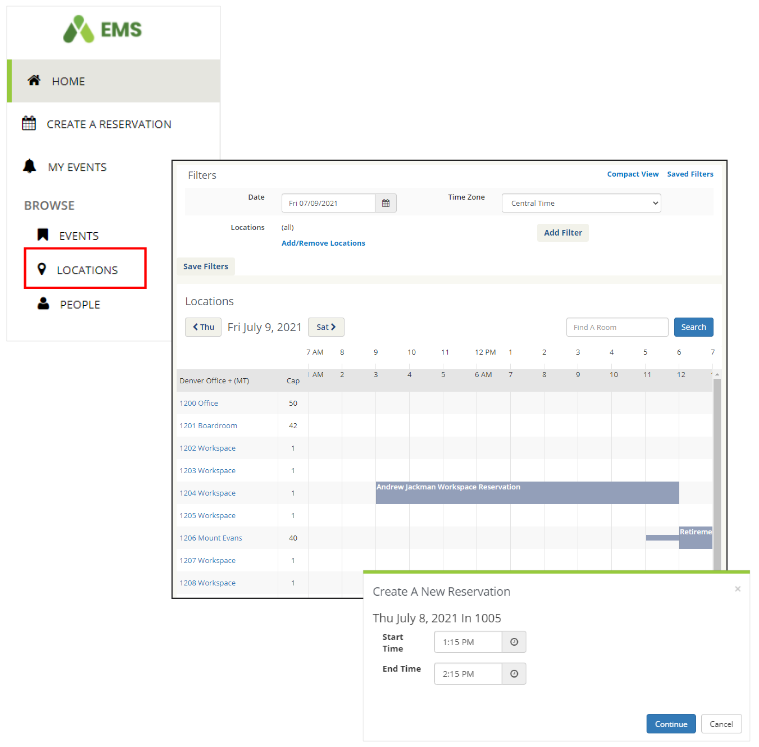
Use Browse > Locations
Use Locations to see the the free/busy schedule of all spaces. This feature can help you identify spaces that may be available for your event.
Navigate the homepage
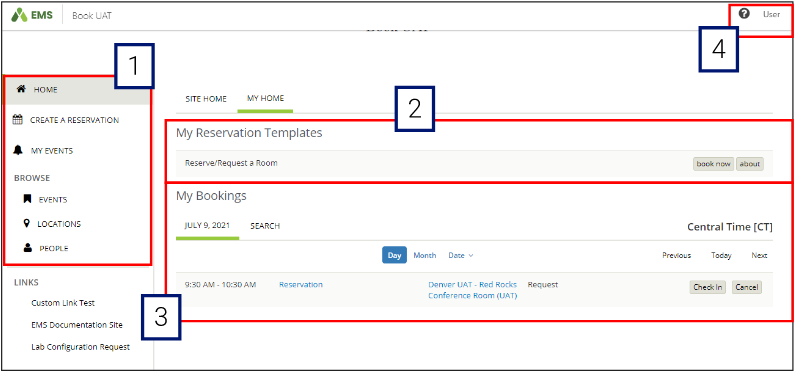
- On the left, there is a menu bar with the following options:
- Create a Reservation: Takes you to your various reservation templates.
- To learn more about each template (about buttons)
- Select the template you want to use (book now button)
- Enter date and time information
- If your event is a re-occuring event (ex: weekly meeting), click the Recurrence button and complete that information
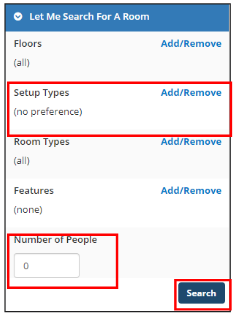
- Click on the blue "Let Me Search For A Room" and select the Room Setup (Add/Remove) and enter the Number of People
- Click Search
- eCalendar will provide a list of rooms that are available on date and time you entered, that are also large enough for the room setup and number of people information that you provided.
- My Events: Takes you to your event list of upcoming and past events.
- Browse: Takes you to the search features in eCalendar.
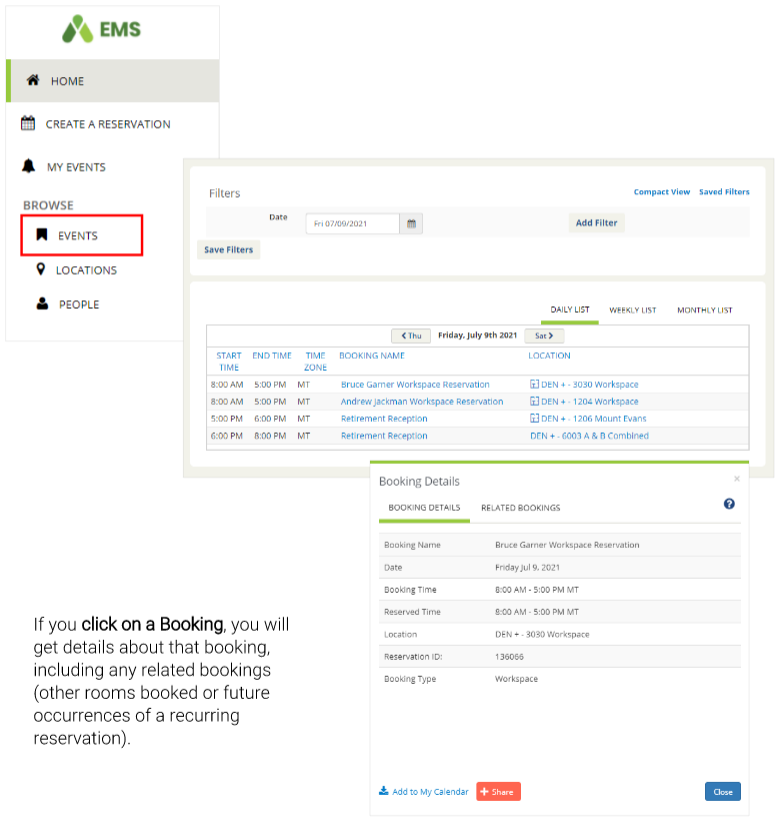
- Events: See public bookings in a daily (default), weekly, or monthly view.
- Locations: See the free/busy of all rooms/resources in STAMP managed spaces.
- Create a Reservation: Takes you to your various reservation templates.
- On the main section of the home page, there are Reservation Templates, which allows you to submit a request right from your home page.
- Below that is a list of your bookings for the day alone with a search option to find your reservations.
- Finally, in the upper right-hand corner, you see your name and a drop-down for your account options.
Make a single reservation
- To make a reservation, begin at either My Home or Create Reservation.
- Determine which Reservation Template you need to use. Click “About” to read the important details about the template. The Templates give you access to reserve different rooms and resources.
- Click “Book Now” next to the Reservation Template you wish to use.

- Input your date, time information (In most instances your location will be The Stamp, and it is will already be listed). The Time Zone must be set to Eastern Time
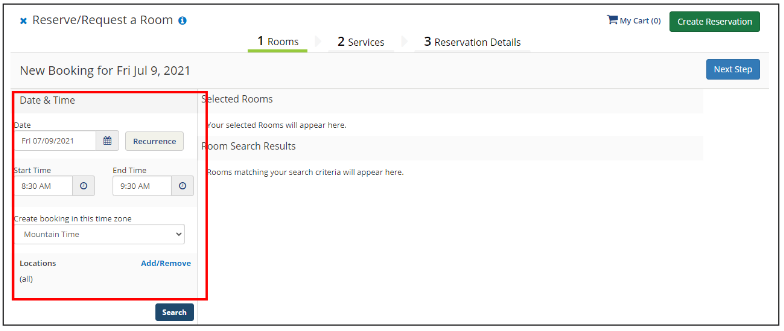
- Click the blue "Let Me Search For A Room". You must select a Setup Type (Add/Remove) and enter the Number of People
- Click the Search button to see a list of available spaces
- A list of spaces that meet your search criteria appears along with their availability.
- Select each space(s) you want to reserve by clicking on the green + sign.
- Click on Add Room after each selection
- The space(s) you selected will now be displayed under the Selected Rooms section (at the top of the page).
- Click Next Step at the top right to add Services.

- Select any of the Resources on the Services page that you wish to add to your reservation. If you are not sure what you need, you can skip this page. The Event Services Coordinator or the space manager will follow up with you after your request has been submitted. At minimum you must click the 3 boxes for "I have read and agree to Terms and Conditions". Click Next Step to enter Reservation Details (Skip to #15)
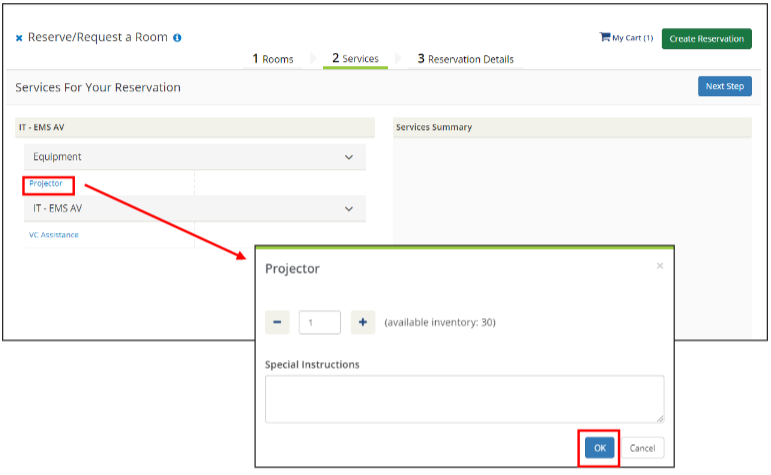
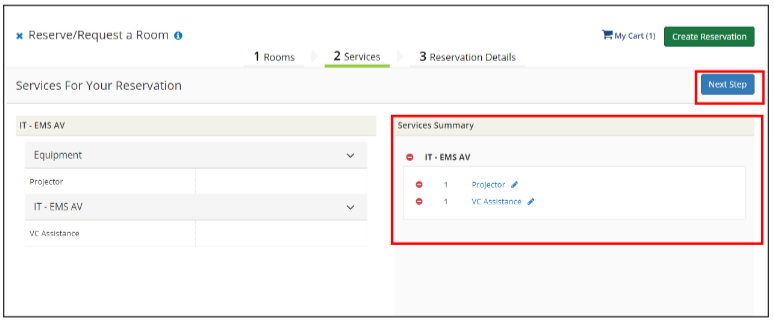
- As you add more Services, they will be added to the Services Summary on the right side of the page. Don't for get to select the 3 boxes for "I have read and agree to Terms and Conditions". Once you have finished adding Services, click Next Step to enter Reservation Details.
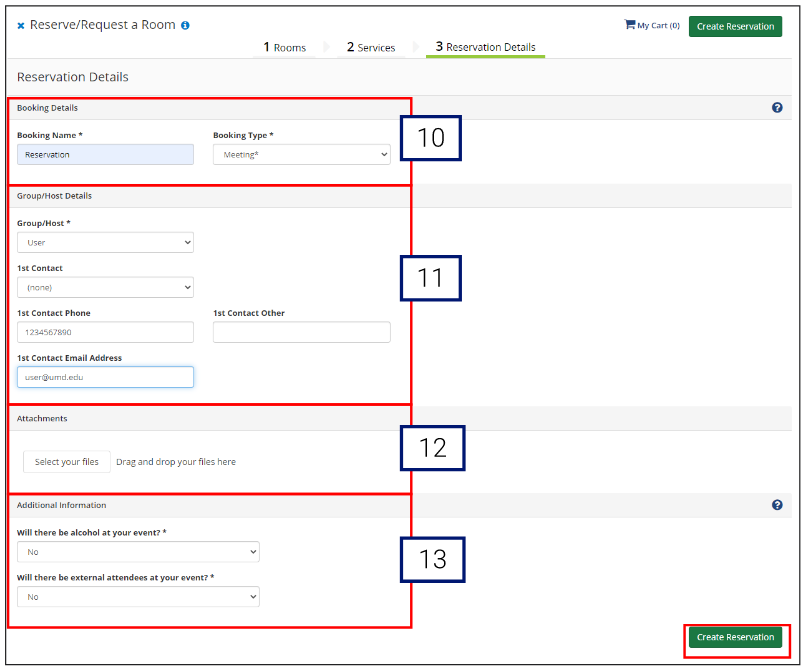
- Enter your Event Details (Event Name and Event Type) .
- Note: Anything with an * next to it is a required field.
- Enter the Group Details
- Answer the additional questions under Additional Information and if applicable the Billing Information
- Check box that you have read and agree to the Terms and Conditions
- Once you have entered all details, click green Create Reservation in the bottom right corner.
Make a recurring reservation
- Begin at either My Home for Create Reservation.
- Determine which Reservation Template you need to use. Click “About” to see important details about the template.
- Click "Book Now" next to the Reservation Template.
- Input your date, time information, also select the Recurrence button. A new window will open.
- Enter your recurrence details and click Apply Recurrence.
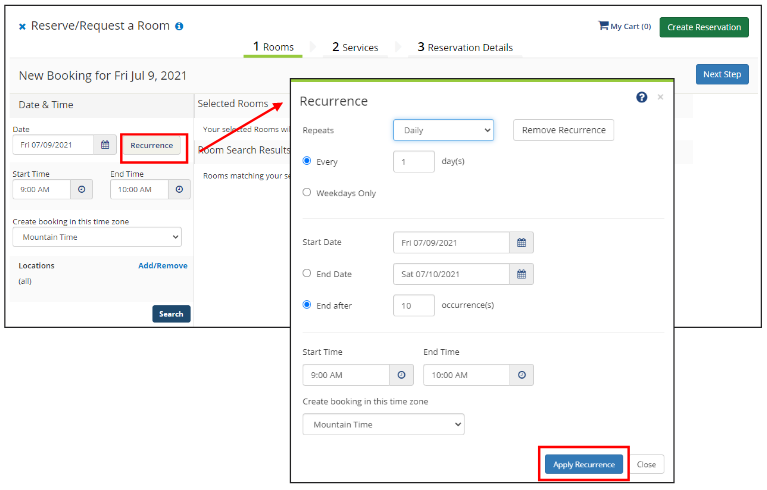
- Location. (In most instances your location will be The Stamp, and it is will already be listed). The time zone must be set to Eastern Time.
- Click the blue "Let Me Search For a Room". You must select a Setup Type (Add/Remove) and enter Number of People. Click the Search button to see a list of available spaces
- A list of spaces will appear with the availability listed in the second column (see below: 10/10 means the space is open for 10 of the 10 selected dates).
- Click the green + icon to add the space(s) you wish to book.
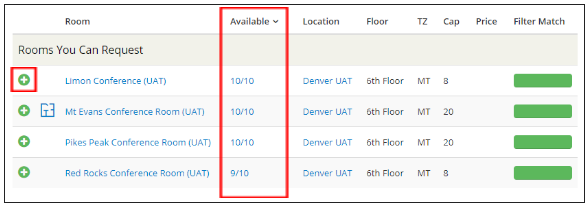
- Click on Add Room after each selection
- The space(s) you selected will now be displayed under the Selected Rooms section (at the top of the page).
- Click Next Step at the top right to add Services.
- Select any of the resources on the Services page that you wish to add to your reservation. If you are not sure what you need, you can skip this page. Your Event Services Coordinator or space manager will follow up with you after your request has been submitted. At a minimum you must click the 3 boxes for "I have read and agree to Terms and Conditions. Click Next to enter Reservation Details (Skip to # 15)
- As you add more Services, they will be added to the Services Summary on the right side of the page. Once you have finished adding Services, click Next Step to enter Reservation Details.
- Enter your Event Details (Event Name and Event Type).
- Note: Anything with an * next to it is a required field.
- Enter the Group Details
- Answer the additional questions under Additional Information and if applicable the Billing Information
- Check box that you have read and agree to the Terms and Conditions
- Once you have entered all details, click Create Reservation in the bottom right corner.
Edit a reservation
You can only edit a reservation and or individual bookings using eCalendar while the reservation is still in WEB-status. After a reservation is no longer in WEB-status, you must contact your Event Services Coordinator or the space manager to make any changes to your reservation in writing.
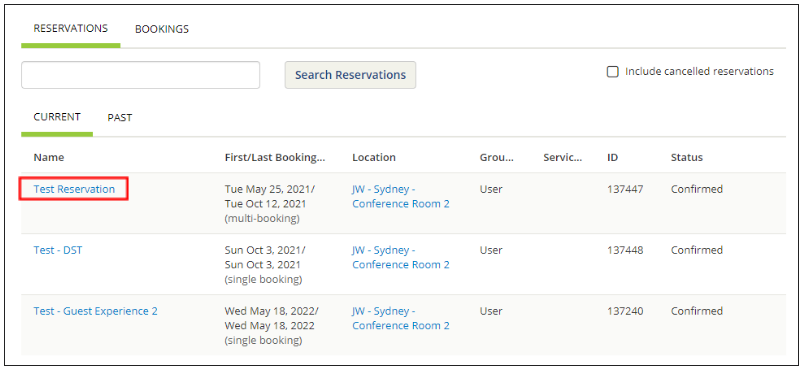
- From your home page, click on My Events.
- Click on the Reservation Name you wish to edit.
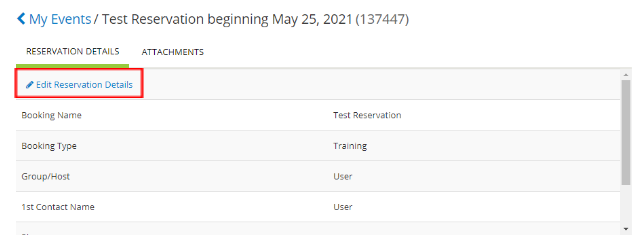
- You can edit Reservation Details (Event Name, Event Type, Group/Host, 1st Contact) by clicking on the pencil icon next to the Reservation Details.
- To edit the date, time, or location of a booking, click the pencil icon next to the booking date.
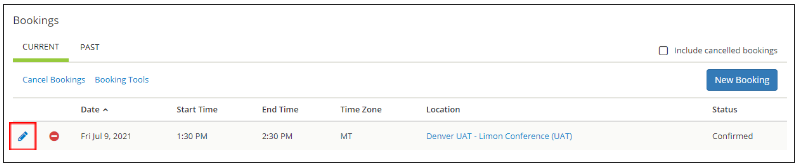
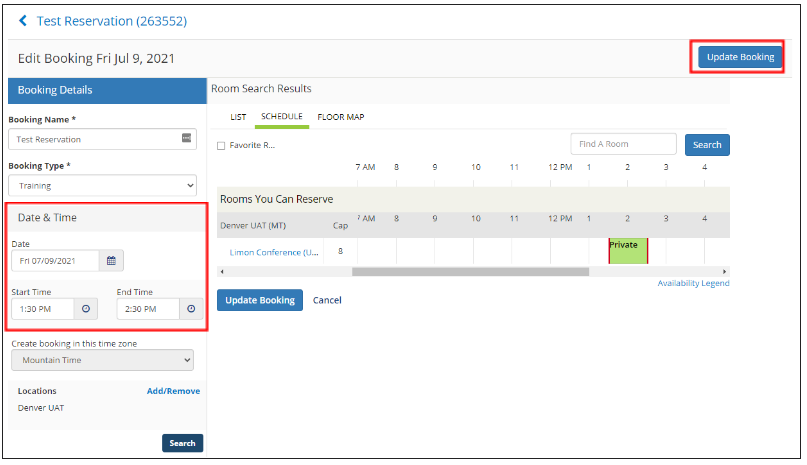
- You can select a new date or time by using the search tools to the left and clicking Search.
- A list of spaces and their availability will be shown under Rooms You Can Reserve. If the space is open for your new date and time, click Update Booking(s) to change the booking information.
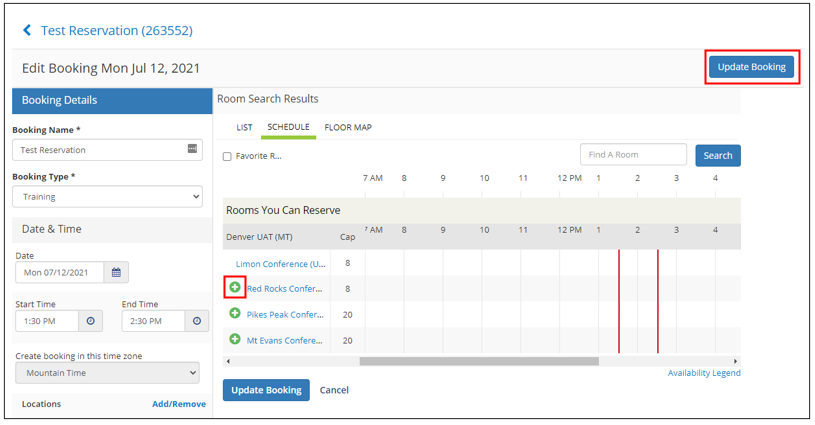
To change the location of the booking, select a new desk by clicking on the green + icon next to an available room and click Update Booking.
- Note: You can filter the list of rooms by using the filters on the left menu.
Cancel a reservation
You can only cancel a full reservation and or individual bookings using eCalendar while the reservation is still in WEB-status. After a reservation is no longer in WEB-status, you must contact your Event Services Coordinator or the space manager to cancel your reservation in writing.
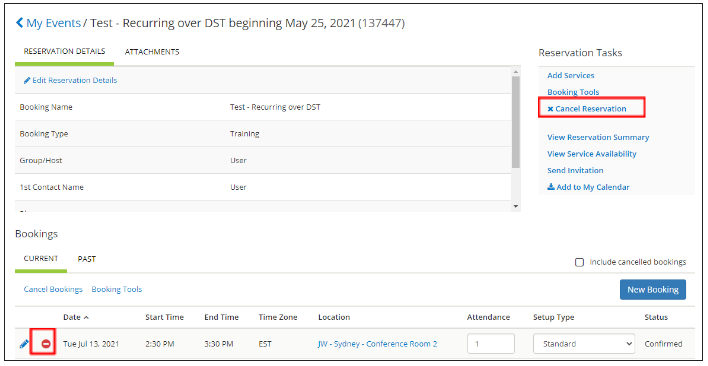
- Go to My Events – this will take you to your list of scheduled events.
- Click on the Reservation Name you wish to cancel.
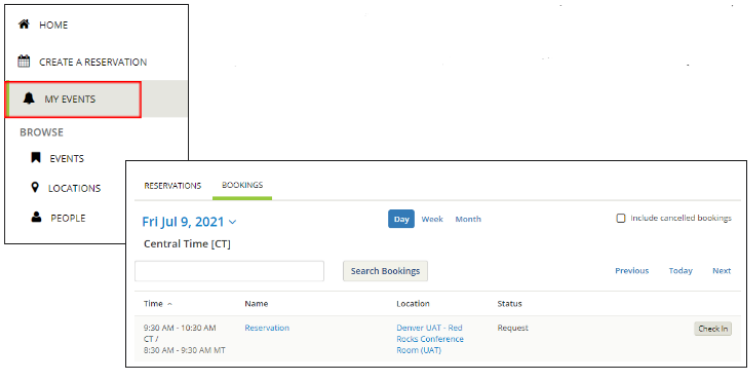
- Click either Cancel Reservation on the right (cancels all bookings/occurrences) OR the red cancel icon next to an individual booking/occurrence (cancels that booking/occurrence only).
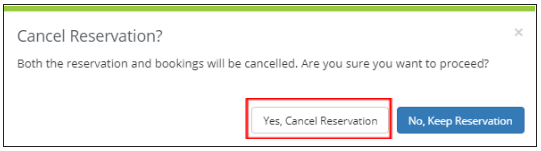
- You will be asked to confirm your cancellation. Click Yes, Cancel Reservation.
Browse events
Browse Events allows you to see all reservations in STAMP managed spaces in a daily, weekly, or monthly list.
If you click on a booking, you will get details about that booking, including any related bookings (other rooms booked or future occurrences of a recurring reservation).